
Below are the instructions on how to hook up a Zebra Printer:
Before getting started:
1) Make sure your PC recognizes the printer, and you can print a test.
2) Have the Zebra Browser Print Utility installed.
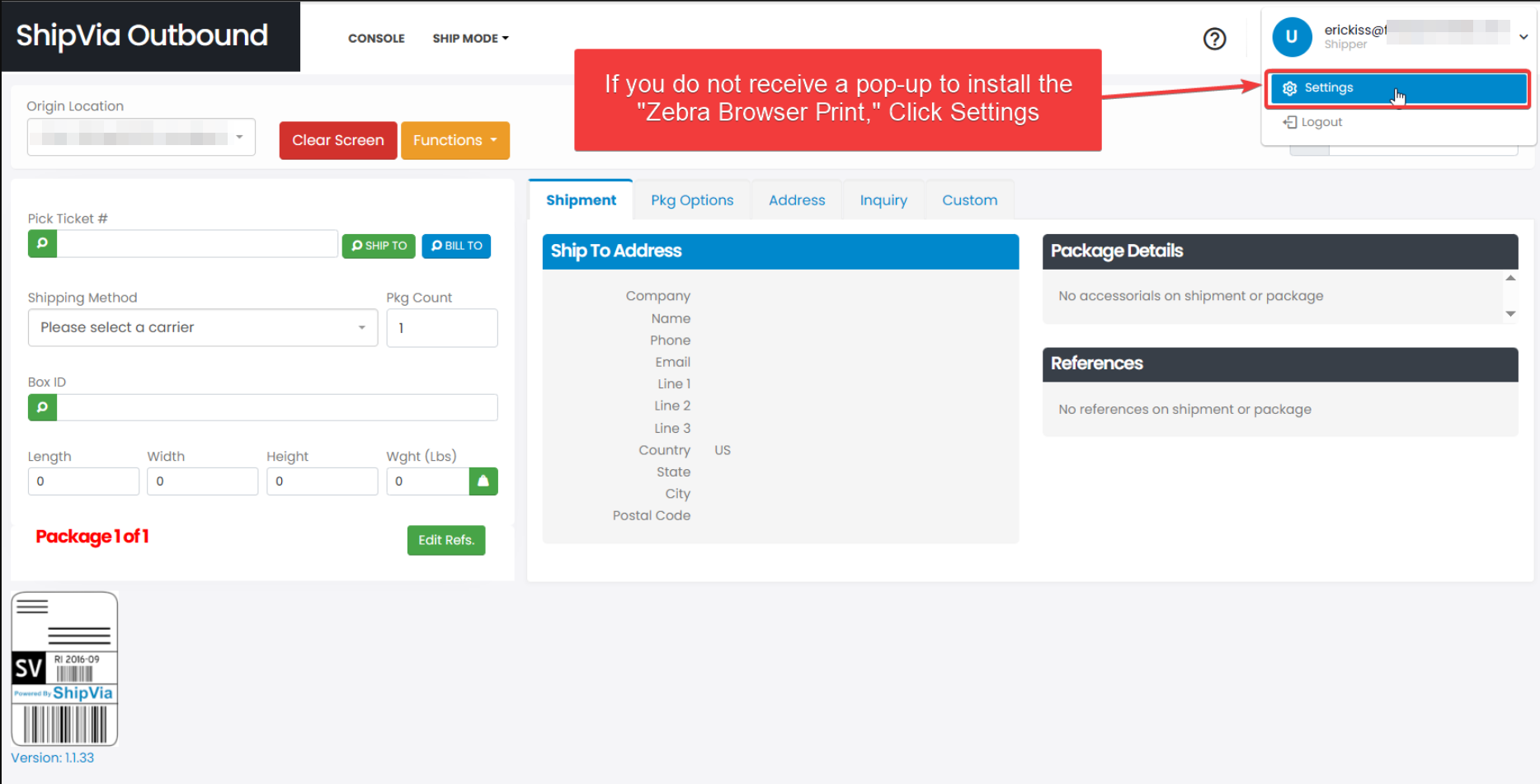
(If you do not receive a pop-up to install the "Zebra Browser Print," Click Settings)
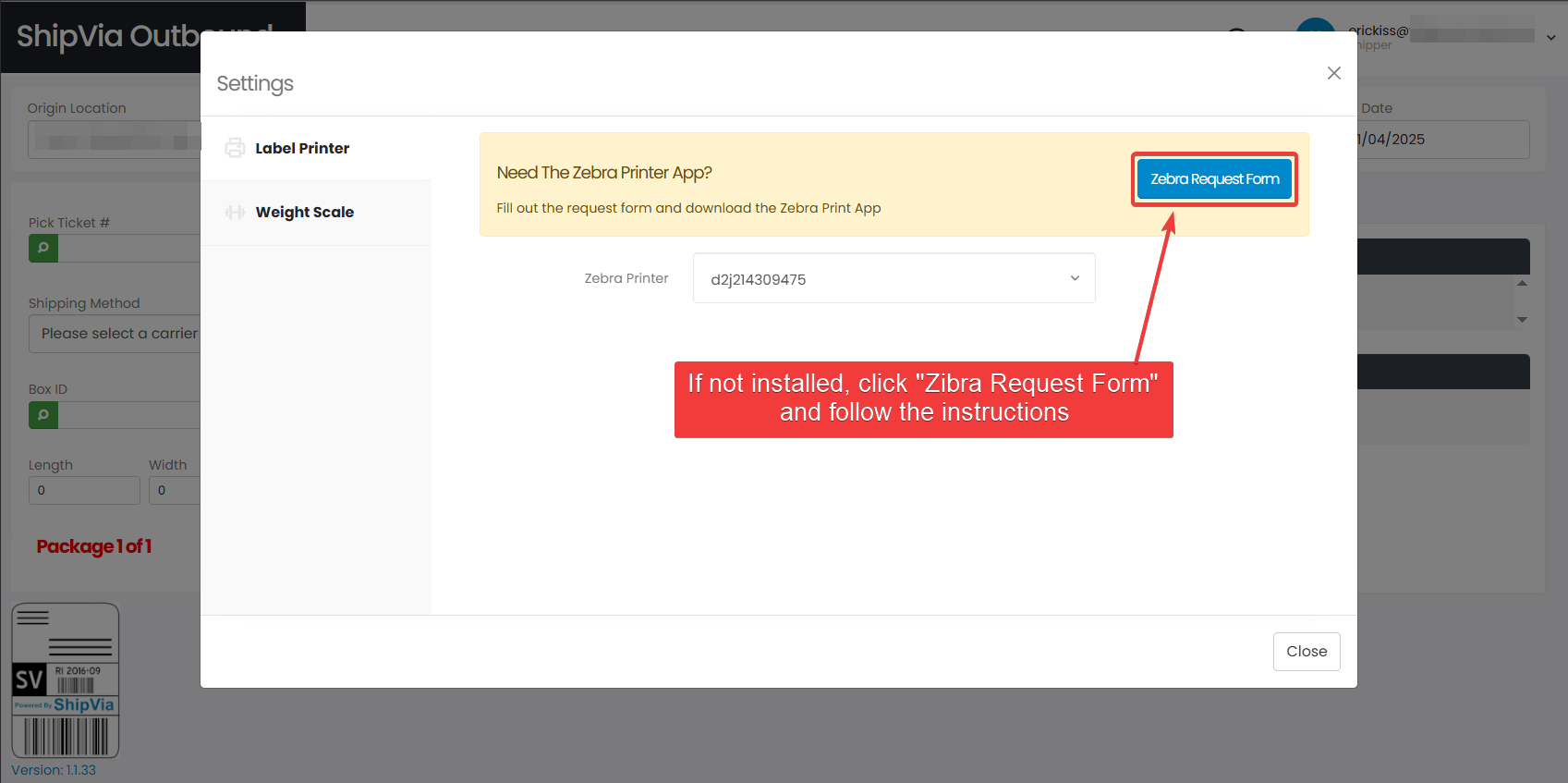
(If not installed, click "Zibra Request Form" and follow the instructions)
(Right-click on Zebra Browser Print application in the system tray for Settings)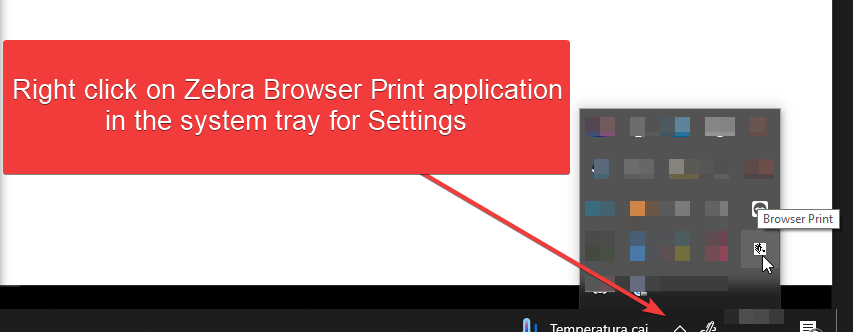
(Click the Change button to locate the printer)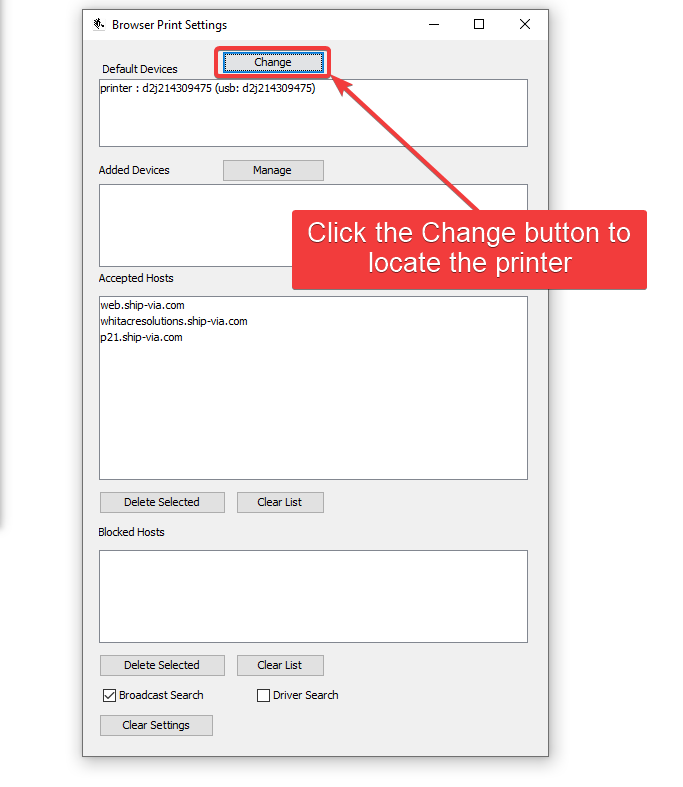
(Click Set to assign the printer to the Zebra Browser Print application)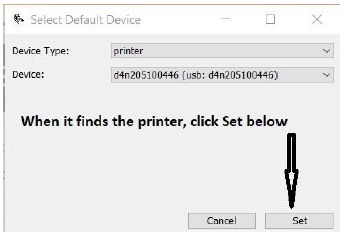
(Select your printer)
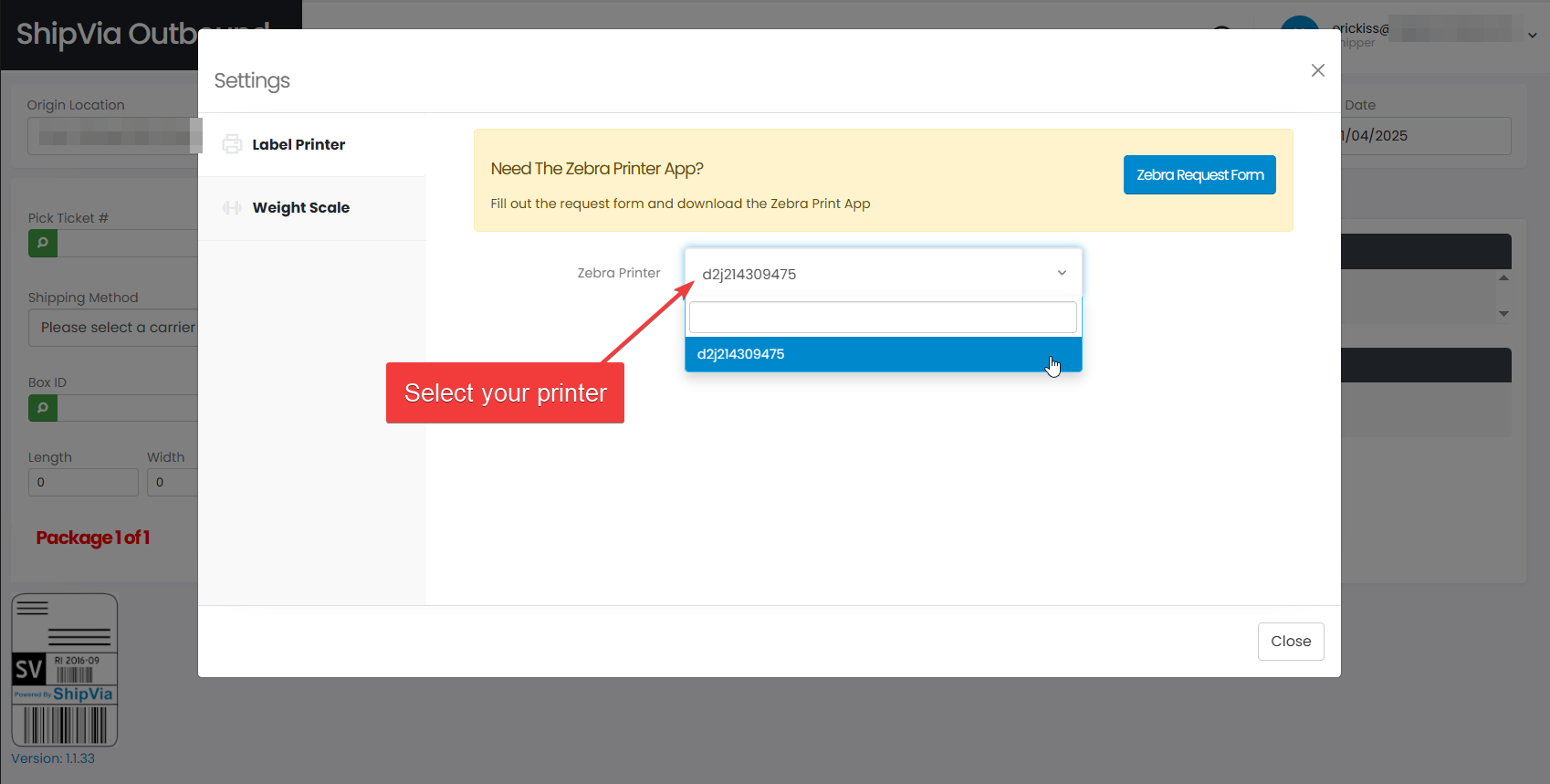
Once the printer is updated in ShipVia, you will be able to start printing labels.
Let us know if you have any issues.